

I keep finding new things to like about Outlook 2010, which got a major overhaul this year and now features the ribbon bars that appeared in the other Office programs in Office 2007.
It’s so easy to overlook things that are right in front of us onscreen! Here’s something that happens out in the open that I had missed.
You already know that Outlook 2010 is completely indexed. The fastest way to find anything – a message, contact, or appointment – is to use the Instant Search box just below the ribbon. Start typing and search results will appear almost as fast as you can type.
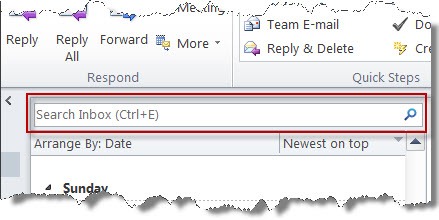
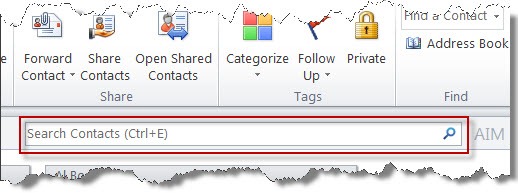
Here’s the part I hadn’t noticed.
As soon as you start typing in a search box, a Search Tools ribbon appears to help refine your search. Put your cursor in a search box in Outlook 2010 and look up. There it is! It’s the weirdest thing. I use those search boxes twenty times a day and had never focused on that ribbon until today.
Do a test. Search for a word or two in your Inbox by typing in the Instant Search box. Now look at the things you can do with a single click!

The All Mail Items button on the left expands the search to cover all the folders in Outlook with messages – all the subfolders where you’ve organized your messages, plus the Sent Items folder.
Click on All Outlook Items to expand the search to cover everything in Outlook, including mail, contacts and appointments.
If you’re looking for a message with an attachment, click the button for Has Attachments. If you know who a message is from, or a word that will be in the Subject, add it easily to the search. The button to narrow the search for items This Week can also be used to narrow in on today or yesterday or last year. There are dozens of other ways to focus your search under the More button.
If you know anything about what you’re looking for in Outlook, the Search Tools ribbon makes it easy to find it. There’s no excuse for losing anything in Outlook!
This nicely complements the All Mail Search Folder that I described a few weeks ago. In fact, I’ve become so confident about searches in Outlook that I no longer sort messages into individual subfolders for each client or project. I’ve got one big “Clients” folder, another big “Personal” folder, and one or two others. Dragging and dropping messages to keep the Inbox clear takes no time at all. I know I can display all the messages about a particular person or business almost immediately, without sorting the messages manually.

I could not find tools option in MS Outlook 2010 how and where to find it
If you search some key informations, like phone numbers outlook doesn’t find them. Thats not the only little problem with the search. To avoid this problem I draw on the add-on Lookeen. It helps me to find everything I need. Its fast and easy to operate and increases the productivity of outlook. U can try the 14 days trial version on http://www.lookeen.com
best regards
Disclaimer: I work for the developer of Lookeen.
Hi BruceB!
Whilst I really love Outlook 2010 and the search facilities I have found that it will find ‘All Outlook Items’ in only one of my mailboxes and pst files bit not my second and third mailboxes.
The 2nd and 3rd mailboxes do not appear on the list for ‘search tools. although it does find the items when I use the ‘big’ search (Start> ‘search programs and files’)
Any suggestions?
I think that’s by design – you can only search one mailbox at a time from within Outlook. There might be some trick to get around that – if you find one, let me know.
Does a global search cover multiple mailboxes? Maybe that’s a good enough workaround. Instead of using the search pane on the task bar, you might find it’s easier to hit the Windows key + F – same effect but an easier window to work in. There’s a rich syntax for narrowing searches, and the dropdown in the search window lets you narrow in on messages pretty quickly, for example. Good luck!
I shutoff some settings according to AVG which would make the system run faster and it runs slower. one of the problems is that outlook search is slow and incomplete.
Unless I am missing something, I think it is sort of a joke that you are not able to actually “save” the search created here. Why go through all the trouble of creating a search without an easy way to save the search. If someone knows of a way, I would love to hear about it, and I already know of the normal way. I’m speaking directly about using the search tools on the ribbon and then saving directly from the search I created.
Outlook 2010 search feature misses key information. One example is that if you put in a phone number like 222.333.7890 into the body of a jounral entry, and then you search for 7890 it doesn’t find the entry. If you put the full number then it finds it.
Outlook 2003 did not have this problem.
Thamos
The Outlook Journal folder is a mysterious place. I stay out of there. If you do a search in the Contacts folder, it will find fragments of phone numbers with no problem at all.
Searching all mail itens for a given word, I get a list of messages containing that word.
How can I find the folder where a message in that list is stored?
Thank you.
What an interesting place you led me to! There are two answers, one a surprise.
The first is, sort the results by folder instead of date.
But the other is even more cool. When you’ve got search results displayed, click on View / View Settings, then “Columns.” Up at the top it will likely say, “Maximum number of lines in compact mode: 2”. Change that to 6. Voila! The information appears about which folder each message is in. In that “Columns” settings window, you can move “In Folder” up the list and reduce the number of lines to 3 or 4 to save space. I didn’t know you could do that!
In View Settings / “Other Settings” you can turn off “Compact View” and get a single line display that includes the folder for each message as well.
Good luck!
When I use the search box in Outlook 2010 I get a message that says I can’t use that feature because I am using admin privleges. Exit program and restart without admin privleges. I have no idea how to do this.
What am I missing?
Thank you.
That’s odd! I hesitate to get into it because there are a lot of things that might be going on. For what it’s worth, here’s one place that might be responsible for Outlook starting with admin privileges:
– Go to C:Program Files (x86)Microsoft OfficeOffice 14
– Right click on “Outlook” (or “Outlook.exe”)
– Click on “Properties”
– On the “Compatibility” tab, if the box is checked, “Run this program as an administrator,” then uncheck it.
– OK your way back out. Restart your computer to be sure that it takes effect.
If that box is not checked when you look, then I’m not sure what to tell you. Good luck!