

Previously:
Windows 7 Search
More About Windows 7 Search
Windows 7 Searches – Small Business
Windows 7 Searches – Libraries
Windows 7 Searches – Search Techniques
SUMMARY: Once you have some experience with Windows 7 searches, Mark Minasi has some tips for power users here.
Old Windows XP computers are falling over left and right, meaning every day people are being exposed to Windows 7 for the first time. One of its most important features for small businesses and law firms is the pervasive inclusion of indexed searches throughout the system. You can search for everything – the programs are indexed, your files are indexed (file names and all the words inside every file), your email is indexed, the metadata in music files about artist and album is indexed, the tags in your photos with the names of your children are indexed – every word is living in an index that’s created and maintained in a quiet, efficient way.
One of the first things that a new Windows 7 user should notice is that when you click on the Start button, your cursor is blinking in a Search bar. Start typing the name of a program and it will immediately appear on the list above, saving you from hunting through the long “All Programs” list.
There’s a Search bar in the upper right corner of every Explorer window that you can use for instant searches through your documents or photos or files. When you open an Explorer window, your cursor will be blinking in the Search bar; you don’t have to click on it to start searching.
When you use Office 2010 or 2007, each “Open Files” window has a Search bar that you can use instead of clicking your way into the subfolders. Outlook has Search bars in every folder and has indexed every word of every email message and attachment.
The search tools deserve a few minutes of study. Here are some of the things that stand out:
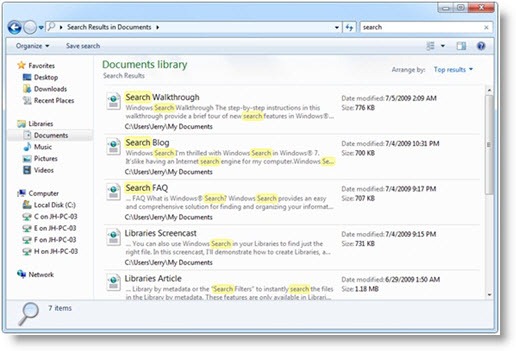
- This article describes the default “Content” view of search results, which includes a preview of each file, highlights the search terms in each preview, and ranks the search results by relevance.
- This article tells you how to add shared company files to your Document “library”. If the shared network files are on a properly configured workstation or server, you can search the company files and your own files instantly with a single operation.

- This article explains the difference between doing a search from your Documents library, and starting a search by hitting the Windows key + F. A search in the Windows key + F window will give you search results from all file locations in your library, plus your Outlook mailbox. There are also general tips about filtering search results, Boolean searches, natural language searches, and more.
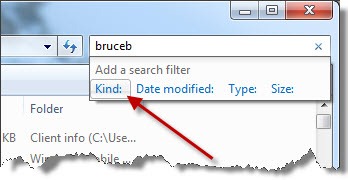
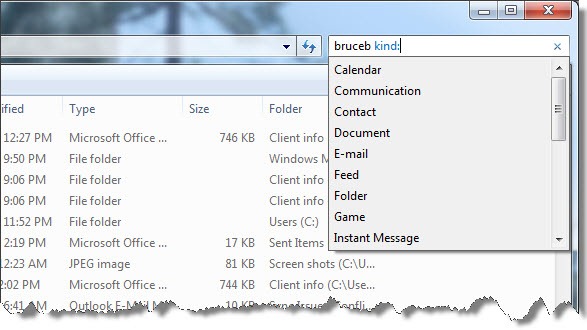
If you have an insatiable desire for searching power, you should learn about the Advanced Query Language developed by Microsoft for the Windows 7 search engine. Some of its features can be accessed through the GUI, as you see in the above screen shots. There is far more that can be done by using small bits of text to create filters, but the process is not well documented for anyone except programmers.
Mark Minasi is one of the best technical writers on the planet, with a gift for explaining complicated concepts in reasonably plain English. His November 2011 newsletter has some background on the development of the Windows Search service, followed by a lengthy description of the syntax and vocabulary of the Advanced Query Language.
He explains some of the basic principles, ending with this summary:
- Search types let you specify different criteria types for finding files.
- You enter a search criterion and the value you’re looking to match on it as criterion:value, and it’s okay to have a space after the colon.
- If the value you’re searching on has a space in it, like “Mark Minasi,” surround it with double quotes.
- Different file types will have space to store different criteria on a Windows box, so for example Windows supports titles for Word documents but not text files or PNGs.
- If you don’t specify a type of criterion (like “title:” or “content:”), then Windows Search will search all possible criteria for whatever text you’ve typed in.
He goes on to provide some Boolean and/or/not details, and some examples of how to search for file or folder names or extensions, file sizes, dates, and keywords. Another example:
Windows Search gives you four date-related criteria: datemodfied:, datecreated:, dateaccessed:, or just date:, which refers to any of the three. It also understands a nice range of ways to represent dates. For example,
- “Yesterday,” “last week,” “a long time ago,” “earlier this year,” “earlier this week,” and “earlier this month” all make sense to Windows Search.
- “11/18/2011” works fine, as does “December 27, 2006” or “27 December 2006.” Windows Search knows whether “1/2/2010” is 2 January 2010 or 1 February 2010 by looking at your localization settings.
- You can create ranges of dates by putting two periods between them, as in “datemodified:11/1/2011 .. 11/30/2011”
- “February” refers to any date in any February of any year. I can’t figure out how to tell it to search just February 2005, short of creating a range.
- You can use greater-than, equals, less-than etc operators, as in “datemodified:<1/1/2004”
You should never, ever hunt for a document or an email message by scanning a long unfiltered list. Always do searches. The more you know about that process, the faster you can get your work done. Power users: go read Mark’s article! It’s invaluable information presented clearly – and boy, is that hard to come by.
