

Fun for the whole family! Try to figure out where the toolbars are that appear and disappear in Adobe Acrobat X when you open a PDF file in your web browser!
SUMMARY: When you open a PDF in your web browser after installing Acrobat X, it may not have any toolbar across the top for saving or printing the file. Adobe has moved the controls to a floating toolbar that only appears when you move your mouse to the bottom of the page. You can make the normal toolbars appear permanently by opening Acrobat, clicking on Edit / Preferences / Internet, and unchecking Display In Read Mode By Default.
Adobe is dealing with the same problem that Microsoft addressed after it released Office 2003: programs whose menus and buttons had become unwieldy and disorganized after years of new versions with constantly growing lists of features. Microsoft moved to the ribbon bar that was introduced in Office 2007 and is now being used more or less consistently in many Microsoft products (including the next version of Windows, according to early reports.)
Adobe has tried to revamp its menus and buttons in Acrobat X and Adobe Reader X, the latest versions of its essential business programs. It’s having a little problem with consistency.
When you open a PDF in Acrobat X, there are simplified buttons across the top and a new Task pane on the right with an organized list of features and flyout menus. It’s reasonably easy to find your way around.
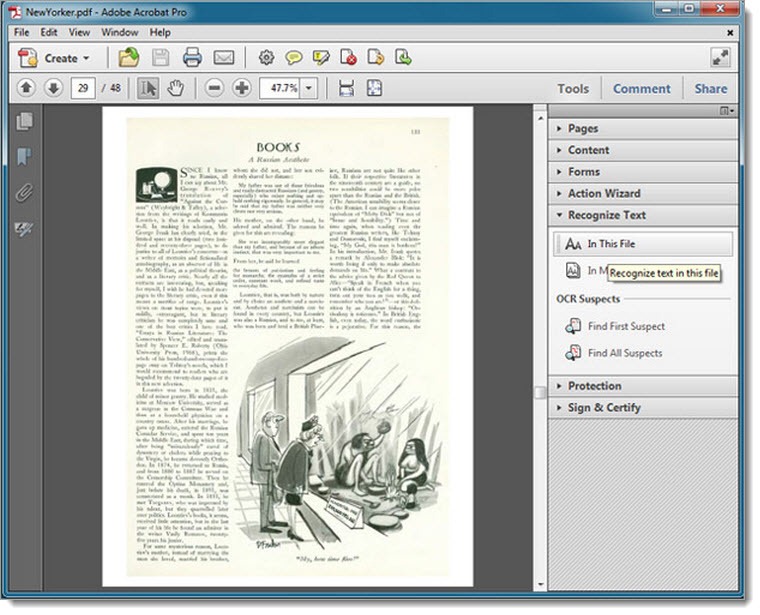
When you open a PDF file in Internet Explorer with Acrobat X installed, the file will display in the browser, just like you’d expect. But now try to save it. Ha! The trick worked! I see the look on your face. The toolbar is gone! The buttons to save and print – they’ve vanished! Poof!
It’s not a bug, it’s a feature – at least, that’s what Adobe says.
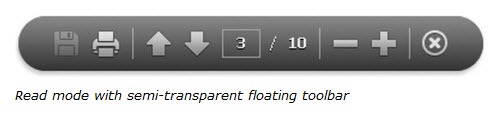
If you move your mouse cursor down to the bottom of the page, in the center, a mysterious semi-transparent floating toolbar will swim into view.

Adobe’s online help page (which for some reason is designed with a really small typeface) explains:
When you open a PDF inside a web browser, the toolbars, navigation pane, and task panes are not available. You can display those items by clicking the Acrobat icon
in the semi-transparent floating toolbar near the bottom of the window.
It’s kind of a parlor magic trick. Once you know the trick, it’s easy.
There is another trick. So far everyone I’ve spoken to wants the buttons to be up at the top every time they open a PDF from the federal court’s PACER system, or from the IRS, or from any of the other thousands of places where PDFs are posted online for businesses.
Open Acrobat and click on Edit / Preferences / Internet, and uncheck Display In Read Mode By Default. You should now see PDFs displayed in Internet Explorer with familiar buttons across the top.

There are a couple of other things about this redesign that bear on this.
I haven’t seen it but John Heckman reports that the main Acrobat X program starts by default after installation with the same bare display, no toolbar buttons visible. Try going to Edit / Preferences /Full Screen and checking Show Navigator Pane in that case.
In a separate page in its online help files, Adobe describes how to turn off the toolbars on demand to “maximize the viewing area on your screen.” On this page Adobe reveals that this view is called “Read Mode”; it’s described as the “default viewing mode when you open a PDF in a web browser.” Unfortunately, Adobe either has more than one floating toolbar, or it has written its help documents poorly, because the illustration in the online help file doesn’t match the floating toolbar that shows up in a browser. Notice that there’s no Acrobat icon to return to normal view. Will the X do the same thing?
That’s not all, of course. There is yet another view called “full screen mode,” with everything hidden. It takes roughly 48,000 words to describe how that works.
Be prepared for some adjustments when you get Acrobat X! This isn’t a reason to fear Acrobat X or resist upgrading. There’s no way to avoid it: nothing stays the same.

One other tip for making sure your toolbars are always visible: under Edit -> Preferences -> Documents, uncheck “Allow documents to hide the menu bar, …”.
I was having an issue where, when no document was open, the menu bar would be visible, but opening any PDF (even those I created myself) would automatically hide them.
No longer!
Good tip! That’s an odd setting that I wasn’t aware of. I can see some other people reporting that it’s gone rogue, like you discovered, where it affects all documents. Thanks for passing it on!
F9 is the toggle key for the Main Menu bar… File, Edit, etc.
That’s true in the Acrobat program but it doesn’t toggle the display when a PDF is displayed in Internet Explorer. It takes a click on the Acrobat logo in the floating toolbar that appears onscreen to display the full set of Acrobat tools in the browser.
In many ways I agree with many others, learning to learn Adobe Acrobat and its newly built in surprises is more than frustrating. Very poor support to load the new package, while working with Off Shore support is “not to pretty good” either.
I’m finding more surprises Acro X tries to take over my new CPU, what the heck is this “Full Screen” crap, why do I have to give up “Screen Space” for Adobe menu bars, of which I turned off and now can’t find away to convert Word .doc (As a printer command anymore.
Adobe as it seems, as with MS, continues to provide features with each new software upgrade that add keystrokes to everything we do, not cool, not to mention the sacrafice thrown to the wind in effectively use of our time, trying to grasp the latest improvement (So They Say) sorta like MS Word’s “Ribbons” what a joke, I purchased 2 complete packages of Office Pro 7.0, and removed them both within a month of screwing around with this complete waste of time feature, still using Office 2003 Pro.
Upgrades ? better to assume not !!! but more like “New Distractions. Not a happy camper with either Adobe or Microsoft.
After more than 18 years in using computers for my small businesses, gonna tip toe over to Apple, at least they seem to value customers time… Keith
I don’t see any floating toolbar in the Acrobat browser plugin, even at the bottom of the page (perhaps because I have a Wacom digitiser instead of a mouse?). Thanks for the preference settings which have fixed the problem (note: if there’s no edit menu visible you can right-click and select “page display preferences” and get to all the preference settings from there)
“…click on Edit / Preferences …”
This only works if the Menu Bar has not disappeared; ie: you can find “Edit” to click on!
I can’t even find the menu bar. I mistakenly clicked “reset toolbars” and now it’s gone! I can’t even ‘Save As.’ If it weren’t for the fact that Adobe has us by the short and curlies when it comes to pdf management, I’d dump this garbage. I’m really frustrated trying to re-learn Adobe every few months.
I have Adobe Reader 9.4.6 on MAC OS X 10.5.8, and was able to disable the disappearing menu, toolbars, and system tray as well. After closing a PDF but before quitting Adobe Reader, the menu reappears for me. In the menu, select “Adobe Reader” “Preferences…” “Documents”, and unchecked the box marked “Allow documents to hide the menu bars, toolbars, and window controls”, and “OK”.
Good info! Thanks.
Thanks, this is very helpful!! That floating toolbar annoyed the heck out of me because every time my cursor got anywhere near the bottom of the page, that dang toolbar popped up and hid the rest of the doucment. AAaaahhh!! But it’s all fixed now.
I appreciate your post! Thanks!
Hi Bruce, on a related note… I can’t find my Analyze Task Pane, which I what I need to get to the Measurements options.
Any ideas?
Boy, I’m not sure. You’d have to go to someone who knows something about about Adobe products. I was going to suggest RoundPeg.com, or perhaps grafixtraining.com, because they claim to be super-smart about Adobe products. But apparently not, because, I’ll be darned, that’s where you come from, and you’re asking questions about Acrobat to a random blogger. Or – and I’m just guessing here – do you perhaps travel around as a real person (this doesn’t look like the typical automated spam) leaving comments on blogs to generate links to your website so you’ll rank higher in Google searches?
Bleah.
Thanks! I want the toolbar on the top every time when I open the pdf, even in the internet browser.
Thanks a lot!